| Getting started is easy! |
| Set up your [Product Name] in a few simple steps |
|
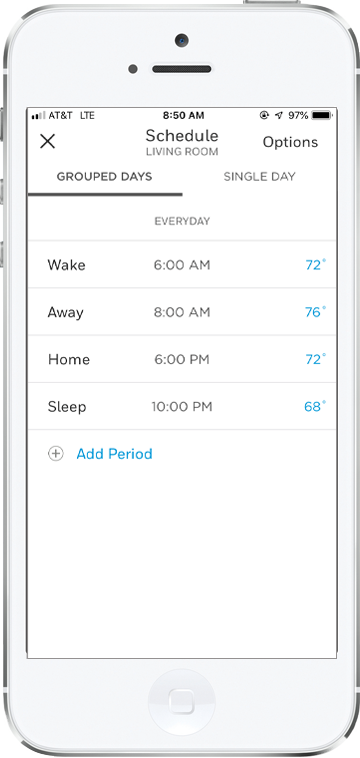
Get automatic comfort, plus help with saving money and energy, by creating a schedule around your day.
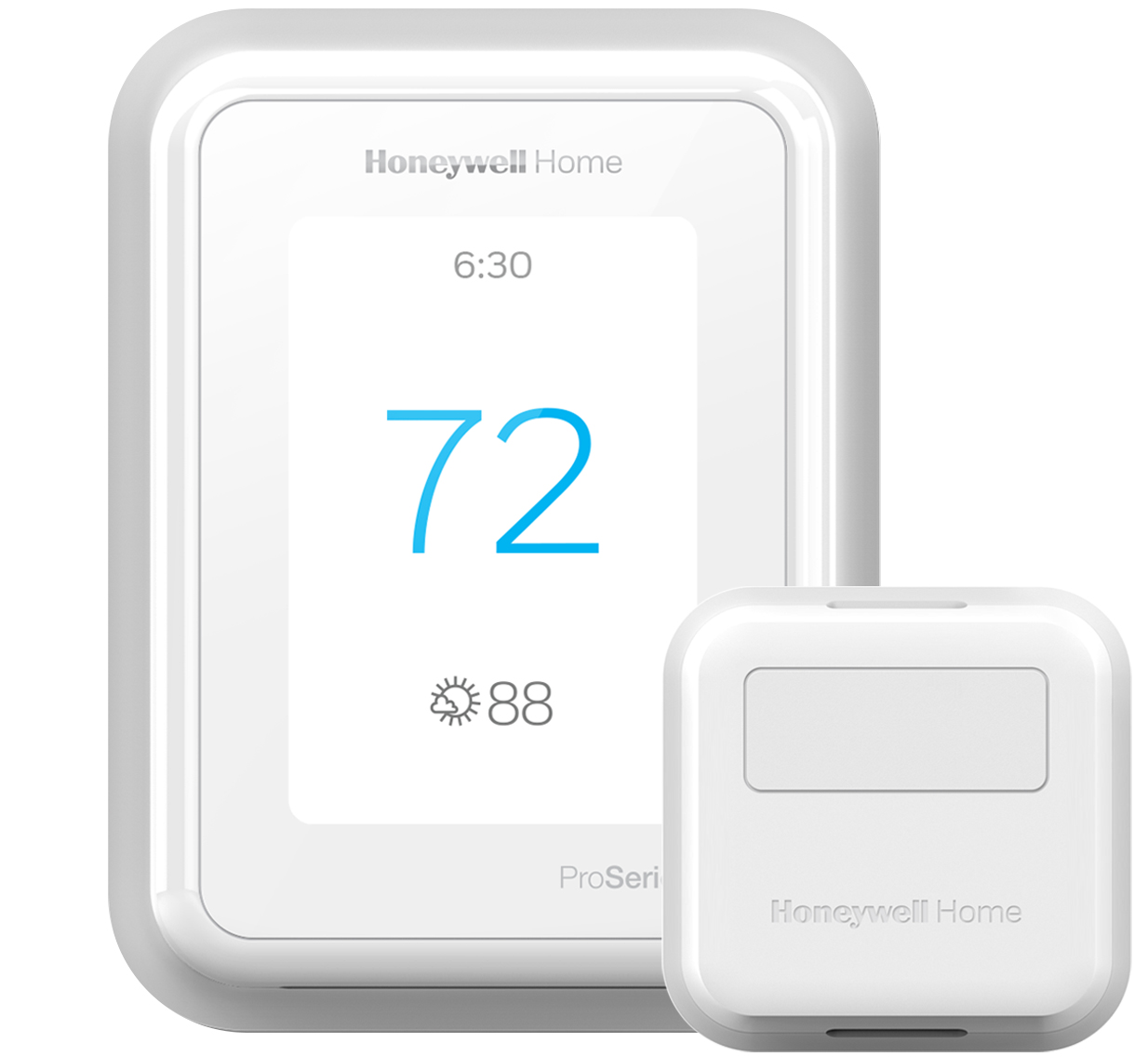
Boost your benefits by adding 2 to 4 Smart Room Sensors to your home and app. They detect activity level room by room, so you get maximum comfort for the areas in use.
|
|
| Easy steps to comfort and control
|
| |
 |
† |
|
| 1. |
Choose your calendar |
| |
On the My Home screen in the app, select your thermostat, then select the calendar icon and choose a weekly or weekend/weekday schedule |
| 2. |
Create a schedule |
| |
Select your temperatures and times—and don't forget the person who wakes up earliest or goes to bed last.
|
| 3. |
Setting up sensors? |
| |
Select the rooms you want your sensors to prioritize, like bedrooms and living spaces.
|
|
|
|
|
|
|
Set your thermostat to know
if you're home, asleep, or away
|
|
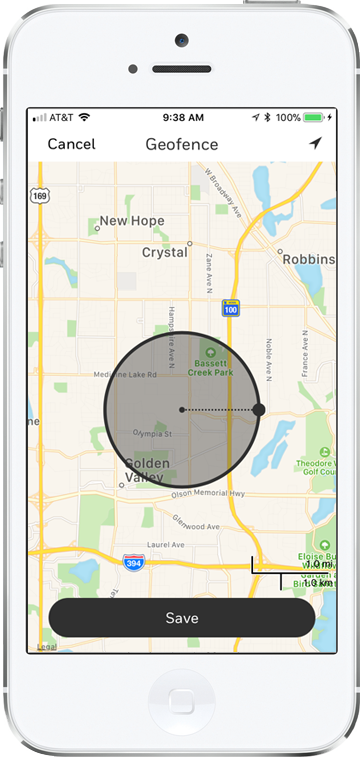
| Your thermostat can keep you comfortable, and help to save energy and money, even on days that don't run on schedule. Just set your geofence radius in your Honeywell Home app. It will tell your thermostat to switch off if you're away, and on when you're heading back home. For extra sleep-based scheduling, add sensors to your app. |
|
| |
|
|
| 1. |
Select Geofence |
| |
Select the Geofence button from the left menu of the app
|
| 2. |
Turn Geofence on |
| |
Toggle on Geofence this Location |
| 3. |
Set Location |
| |
Return to My Home screen and select your location |
|
|
|
|
|
|
| Location-based comfort with sensors
|
|
Sensors can help maximize control and comfort in the rooms that matter most, like the bedroom, living room, and basement.
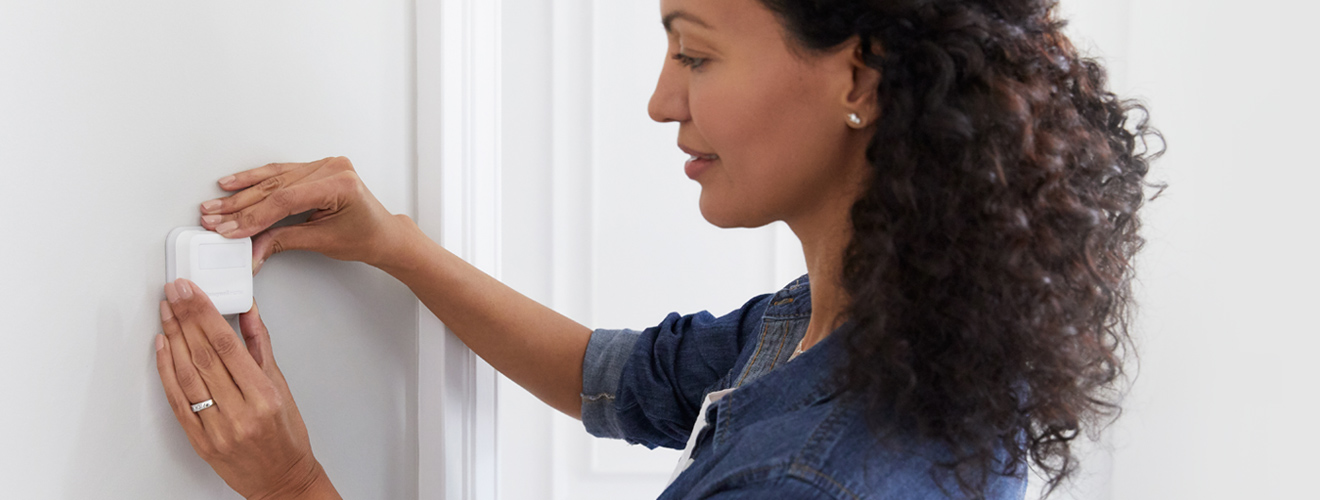
Place sensors on interior walls, about 5 feet from the floor, and away from heat sources and windows. Keep them visible to take advantage of their motion detection feature.
|
|
 |
† |
|
|
|