| Find the best spot for your Camera Base Station |
|
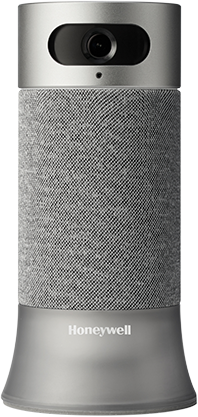
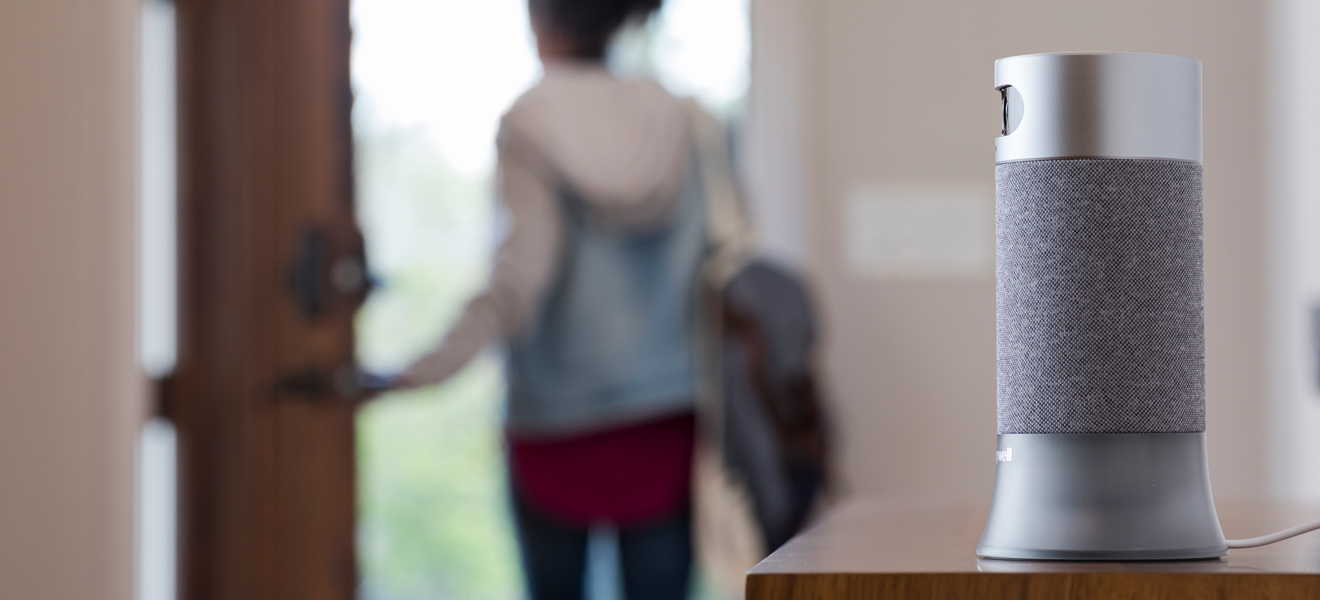
| Take advantage of your base station's 147° wide-angle view and 1080p HD camera by setting it at eye level, with a clear view of your selected entrance.
|
|
| Set your base station to know if you're away |
|
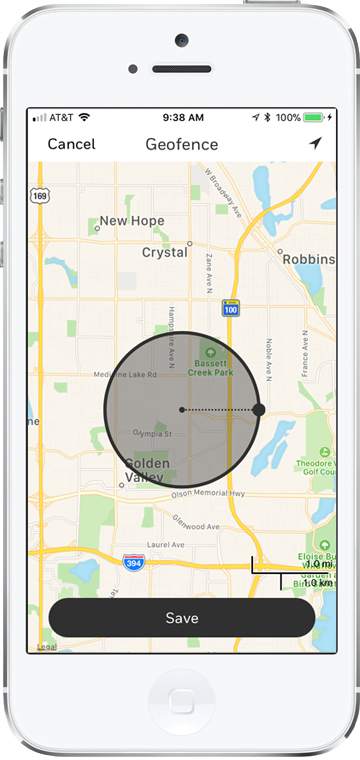
| Easily enable your system to activate automatically—without a code or commands—by setting your geofence radius in your Honeywell Home app.
|
|
| |
|
|
| 1. |
Create a different account for each user |
| |
Lorem ipsum dolor
|
| 2. |
Select Geofence |
| |
Select the Geofence button from the left menu of the app
|
| 3. |
Turn Geofence on |
| |
Toggle on Geofence this Location |
|
|
|
|
|
|
| Set up custom alert zones |
|
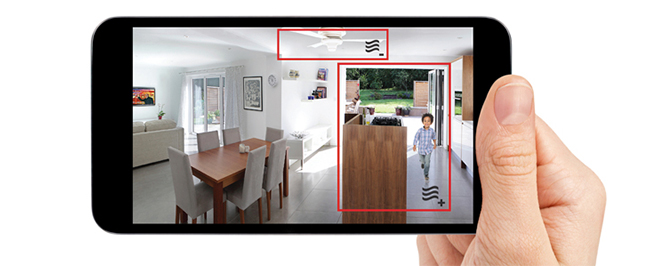
| Let your base station know where you'd like to pay special attention, like doors and windows, and where it should ignore background motion, like ceiling fans, to avoid false alarms.
|
|
| |
| 1. |
| Turn on Motion Detection |
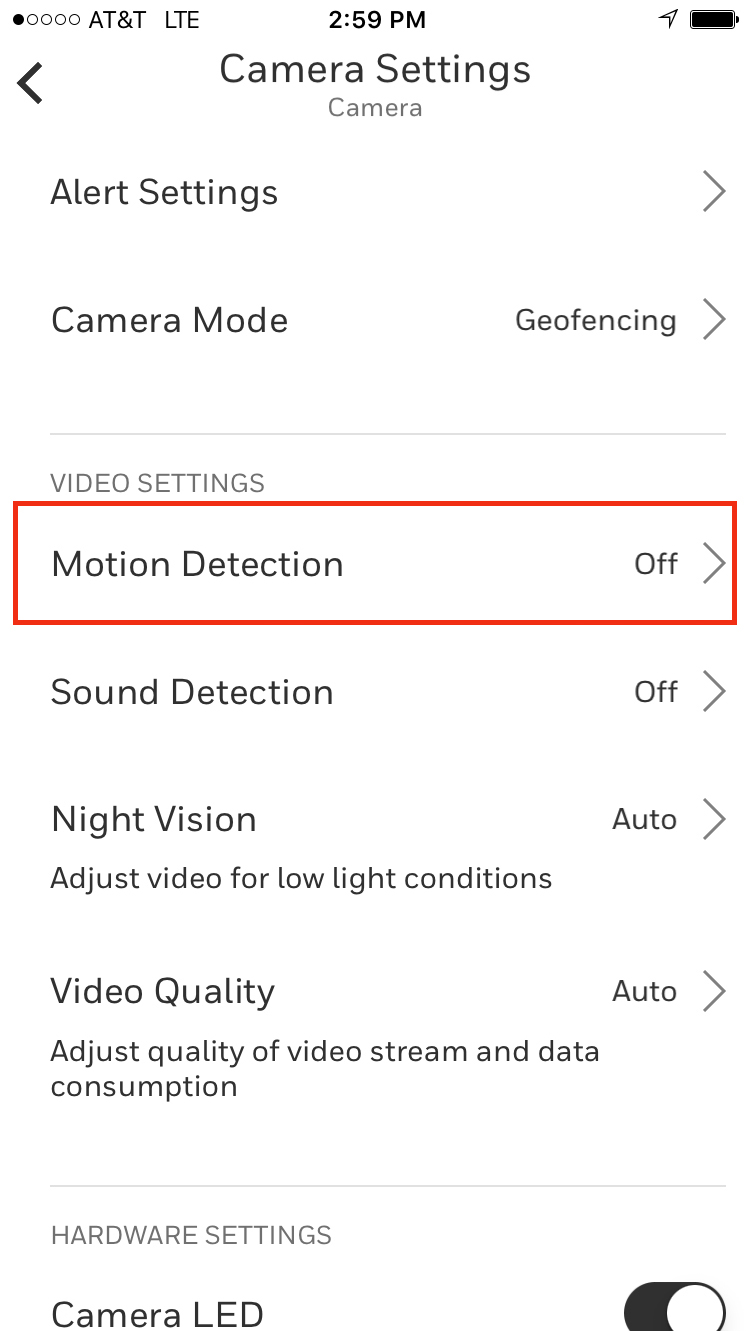
| Tap the settings icon on your live feed screen, select Video Settings, then select the Motion Detection button.
|
|
|
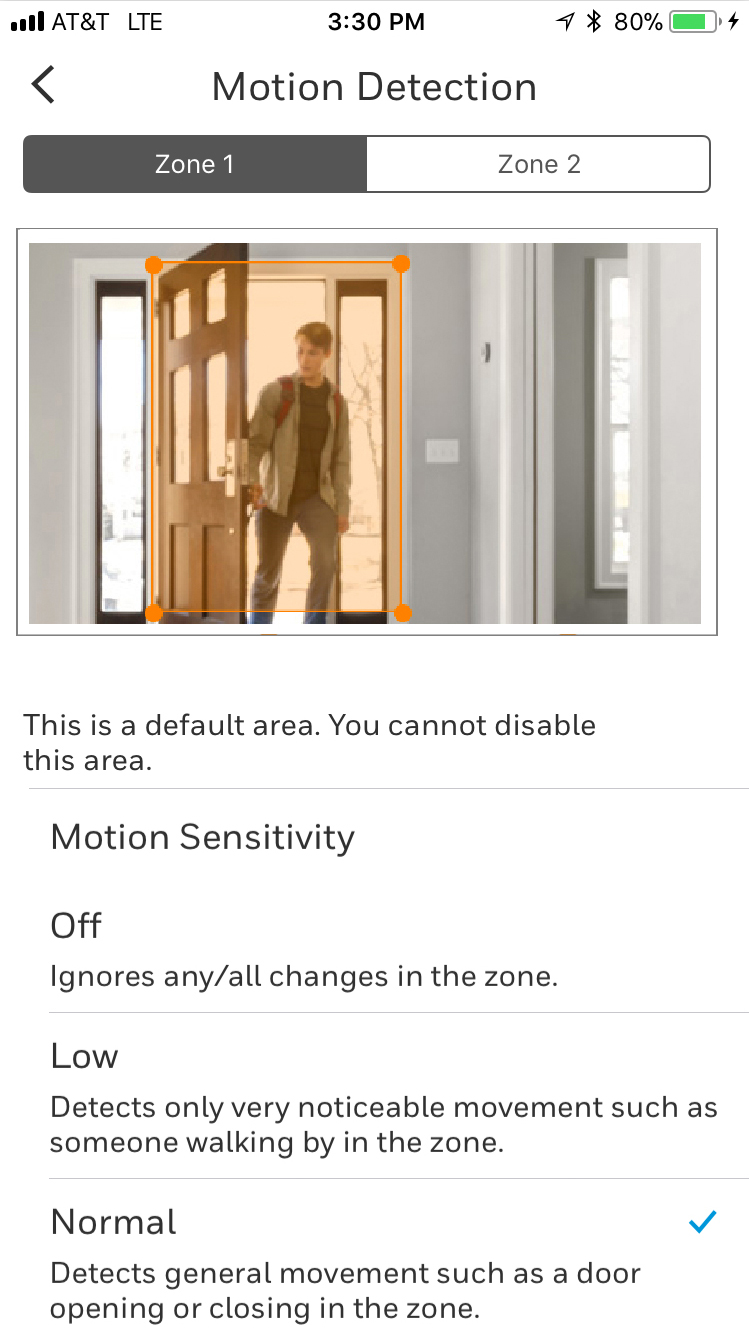
| Select Zone 1, 2, 3 or 4, then tap and drag the image to select the area |
|
|
|
|
|
|
|
| Add family members to your system |
|
| Share control of your Honeywell Smart Home Security System and maximize your base station's location-based features—just add users in your app.
|
|
| |
|
|
| 1. |
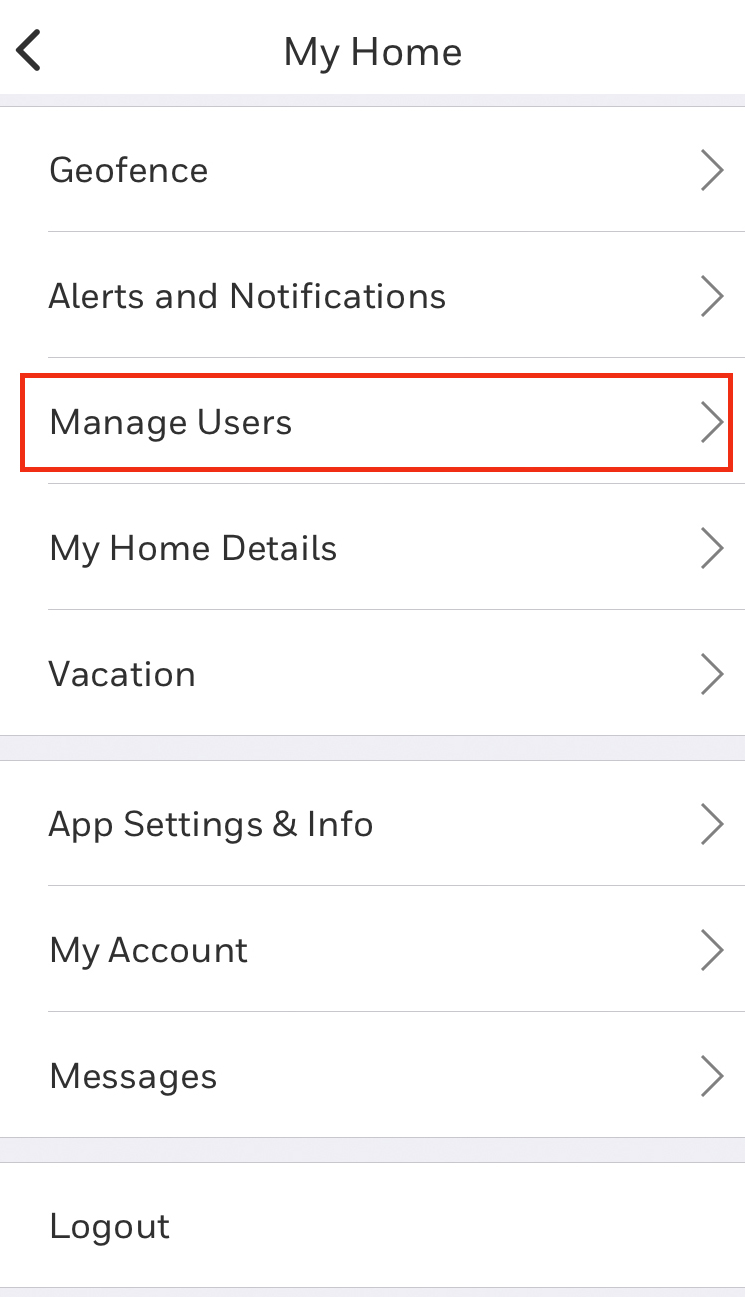
Select Manage Users |
| |
Open the app and use the main menu |
| 2. |
Select Add User |
| |
Scroll to the bottom of the Manage Users screen |
| 3. |
Enter user emails |
| |
Each user will get a message on how to begin |
|
|
|
|
|
|
|
|
| ›
|
No matter where your day takes you, you can get a live view of your home any time on the dashboard screen of your app. |
|
|
 |
| Tweet us |
Mon–Sat 8AM–11PM,
Sun 9AM–11PM CST. |
|
› |
|
 |
| Email us |
| We’ll get back to you within 48 hours. |
|
› |
|
|
|
 |
| Call us |
| Experts are ready to help Mon–Sun. |
|
› |
|
|
|