| Find the best spot for your Camera Base Station |
|
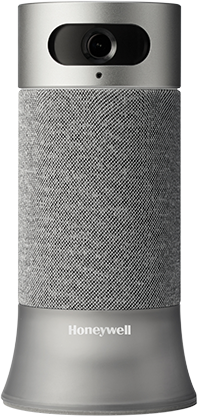
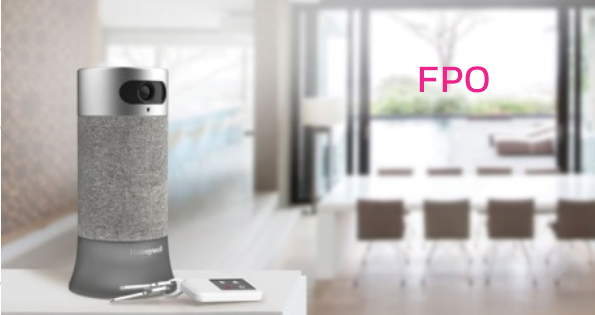
| Take advantage of your Camera Base Station's 147° wide-angle view and 1080p HD camera by setting your base station at eye level, where it has a clear view of your selected entrance. It's cordless, so you never need to hassle with outlets or wires. |
|
| Set your Camera Base Station to know if you're away |
|
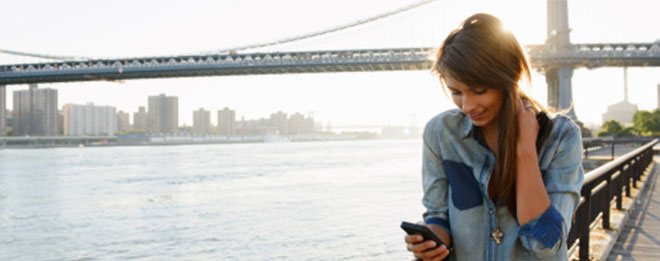
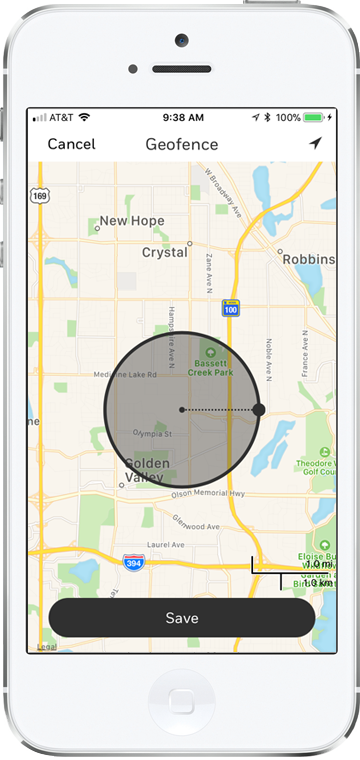
| Easily enable your system, without a code or commands, by setting your geofence radius in your Honeywell Home app. Simply walk out the door, and your Camera Base Station will activate and send you alerts while you're away.
|
|
| |
|
|
| 1. |
Select Geofence |
| |
Select the Geofence button from the left menu of the app
|
| 2. |
Turn Geofence on |
| |
Toggle on Geofence this Location |
| 3. |
Set Location |
| |
Return to My Home screen and select your location |
|
|
|
|
|
|
| Set up custom alert zones |
|
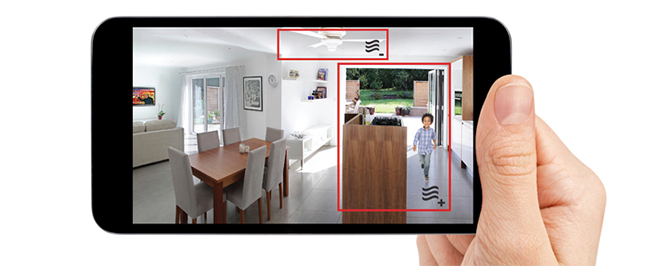
| Let your Camera Base Station know where you'd like to pay special attention, like doors and windows, and where it should ignore background motion, like ceiling fans, to avoid false alarms. |
|
| |
| 1. |
| Turn on Motion Detection |
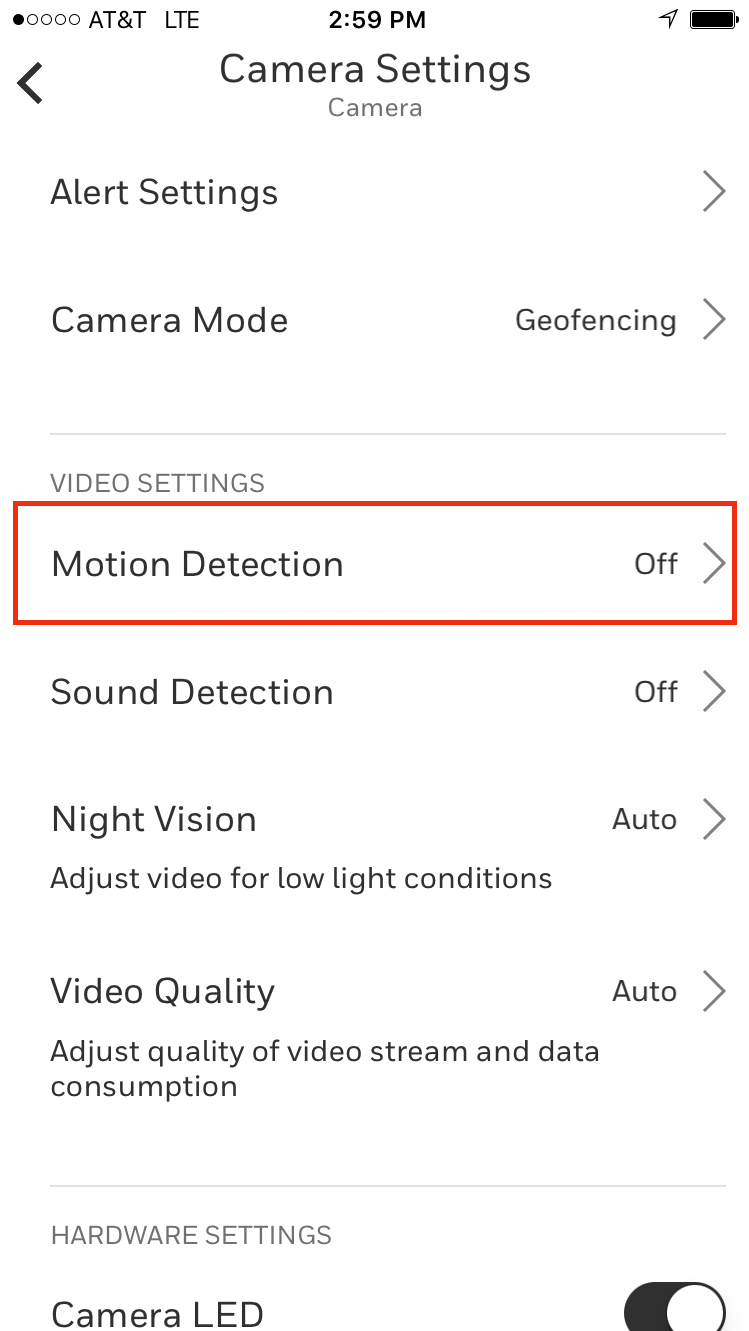
| Tap the settings icon on your live feed screen, and select the motion detection button |
|
|
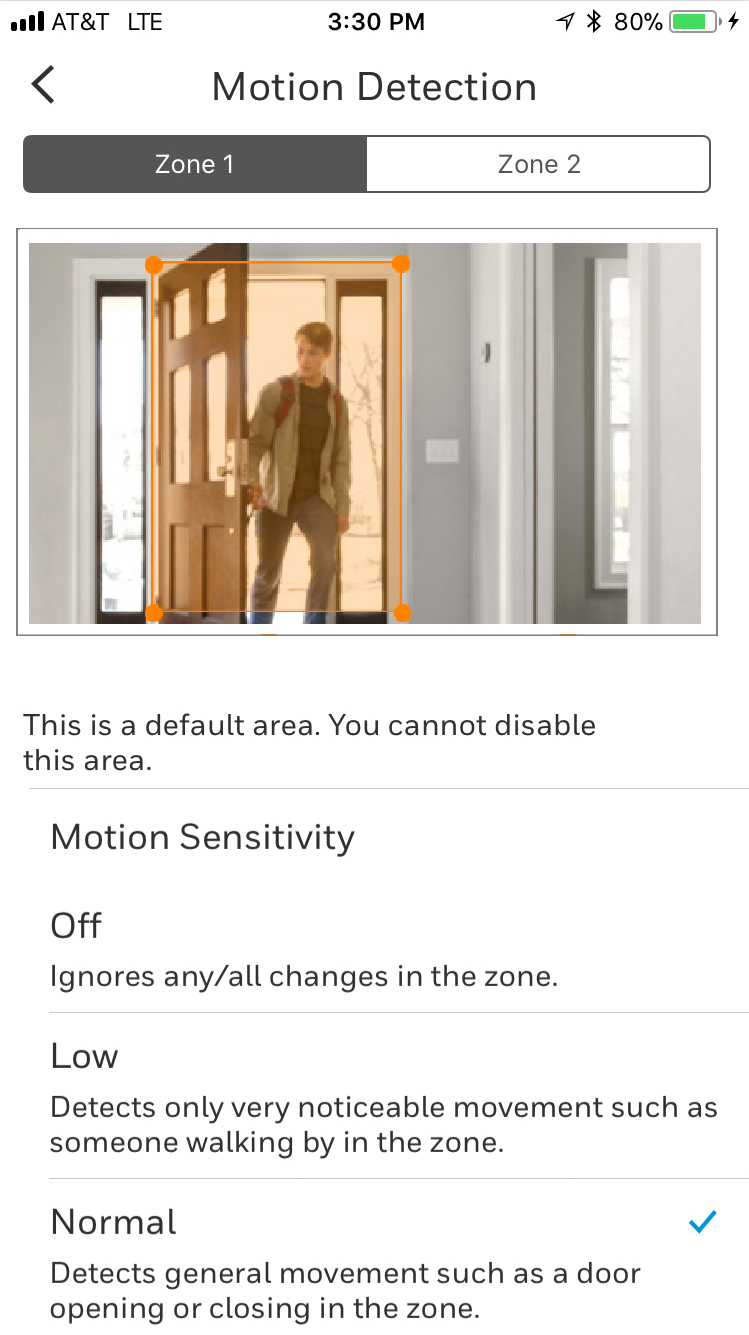
| Select Zone [1 or 2][1, 2, 3 or 4], then tap and drag the image to select the area |
|
|
|
|
|
|
|
| Add family members to your system |
|
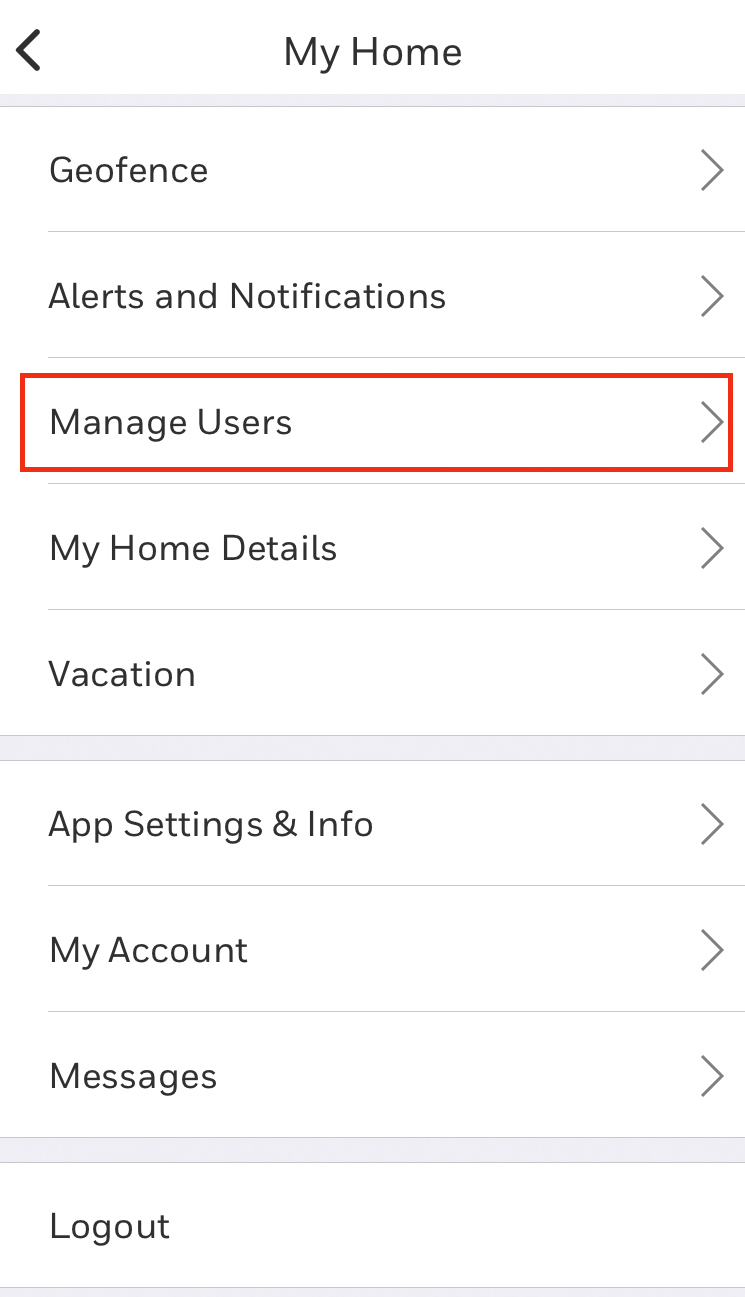
| Share control of your Honeywell Smart Home Security system and maximize your Camera Base Station's location-based features—just add users in your app.
|
|
| |
|
|
| 1. |
Select Manage Users |
| |
Open the app and use the main menu |
| 2. |
Select Add User |
| |
Scroll to the bottom of the Manage Users screen |
| 3. |
Enter user emails |
| |
Each user will get a message on how to begin |
|
|
|
|
|
|
|
|